Web Interface
EdgeGateway WebUI Documentation
This document walks you through enabling, configuring, and using the EdgeGateway (eG‑OS) WebUI to monitor and manage your device.
Getting Started
Enabling the WebUI Service
Use the CLI to enable and start the WebUI service:
device webgui enable
device webgui status
A successful status response looks like:
{
  "webgui": {
    "is_running": true,
    "is_enabled": true,
    "http_redirect": true,
    "subservice_status": "OK",
    "port": 48366
  }
}
Additional commands:
Command |
Description |
|---|---|
|
Disable WebUI |
|
Change listening port |
|
Enable HTTP→HTTPS redirection |
|
Disable HTTP→HTTPS redirection |
Accessing the WebUI
Determine the device IP address:
nm show
Open your web browser and navigate to:
https://<DEVICE_IP>:<PORT>
Log in with your administrator credentials.
Home Dashboard
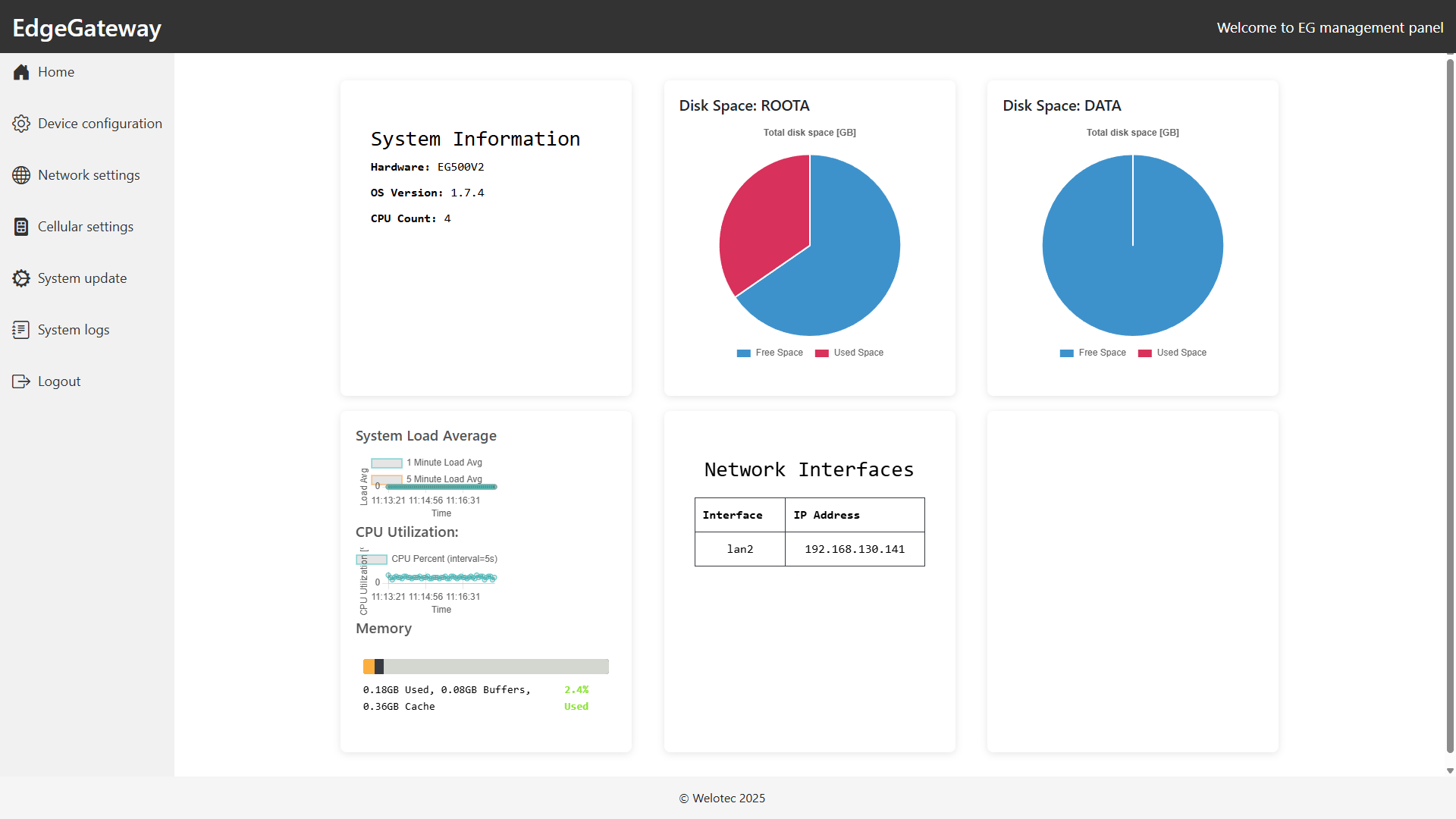
The Home dashboard provides real-time system statistics:
System Information: Hardware model, OS version, CPU count.
Disk Space: Pie charts showing free vs. used space for ROOTA and DATA partitions.
System Load average
CPU utilization
Memory Usage: Used, buffered, and cached memory with percentage.
Network Interfaces: Table of interface names and assigned IP addresses.
Use the sidebar menu to switch between sections:
Home: Dashboard overview.
Device Configuration: Import/export configuration, reboot device.
Network Settings: Configure LAN interfaces and VLANs.
Cellular Settings: Manage cellular modem (if supported).
System Update: Upload and apply firmware updates.
System Logs: View system logs.
Logout: Securely end your session.
Device Configuration
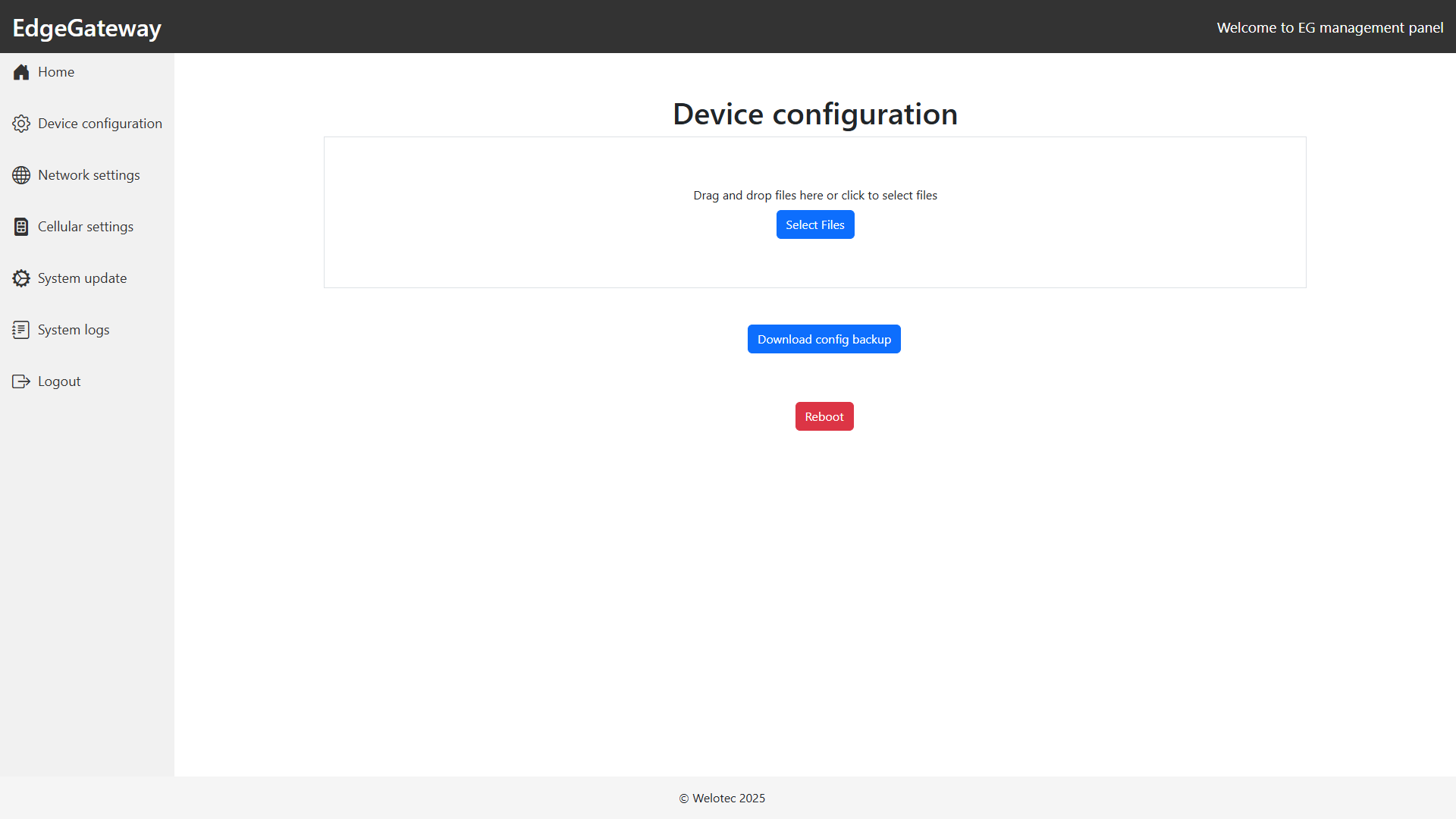
Manage your device’s configuration files:
Upload Configuration: Drag‑and‑drop or select a
.conffile to apply settings.Download Backup: Export the current running configuration.
Reboot: Restart the device properly.
Network Settings
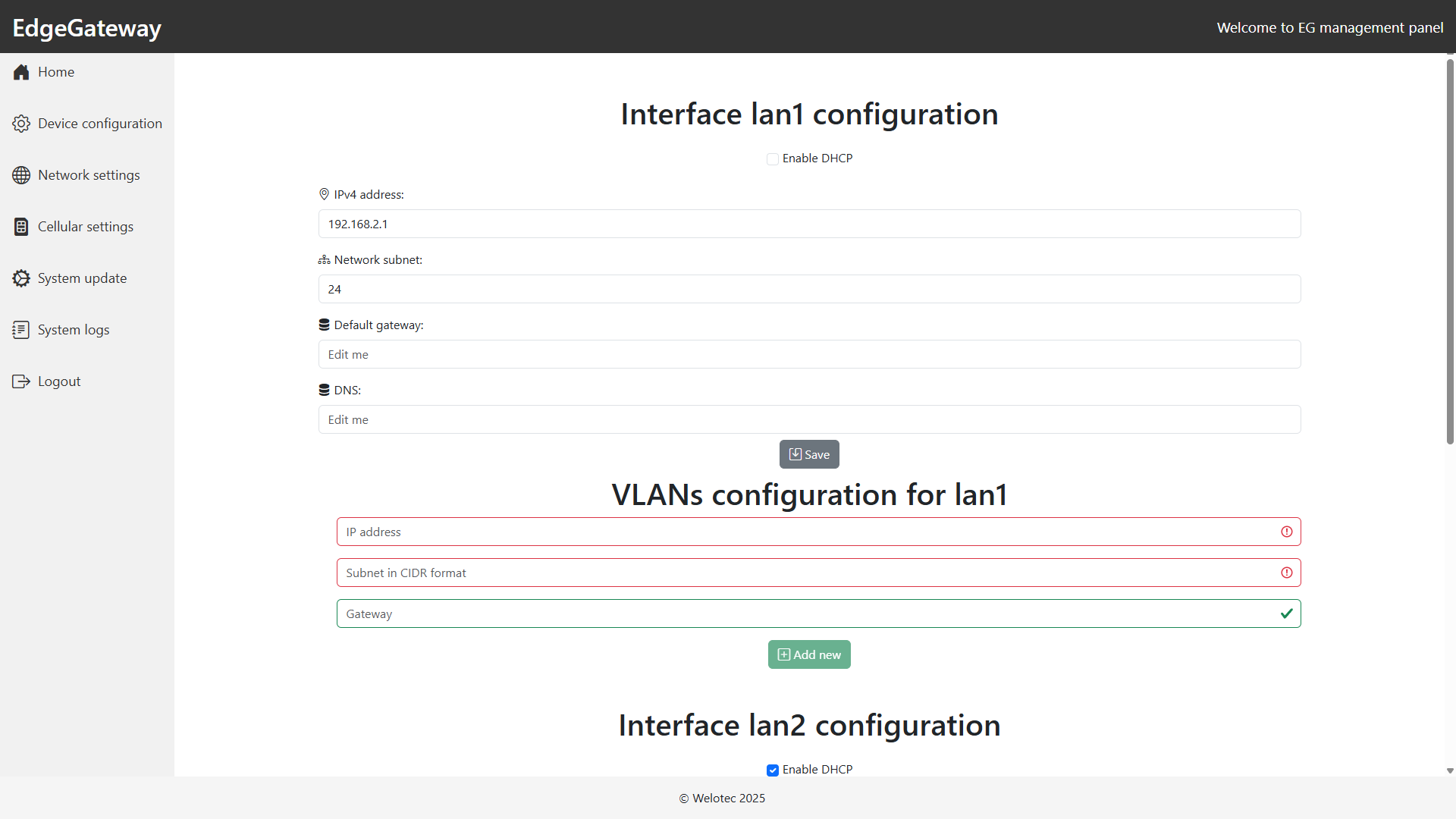
Configure LAN interfaces and VLANs:
Interface Configuration
Enable DHCP or set a Static IPv4 Address, Subnet Mask (CIDR), Gateway, and DNS.
VLANs
Add multiple VLAN entries per interface.
Specify VLAN IP, subnet (CIDR), and gateway.
Cellular Settings
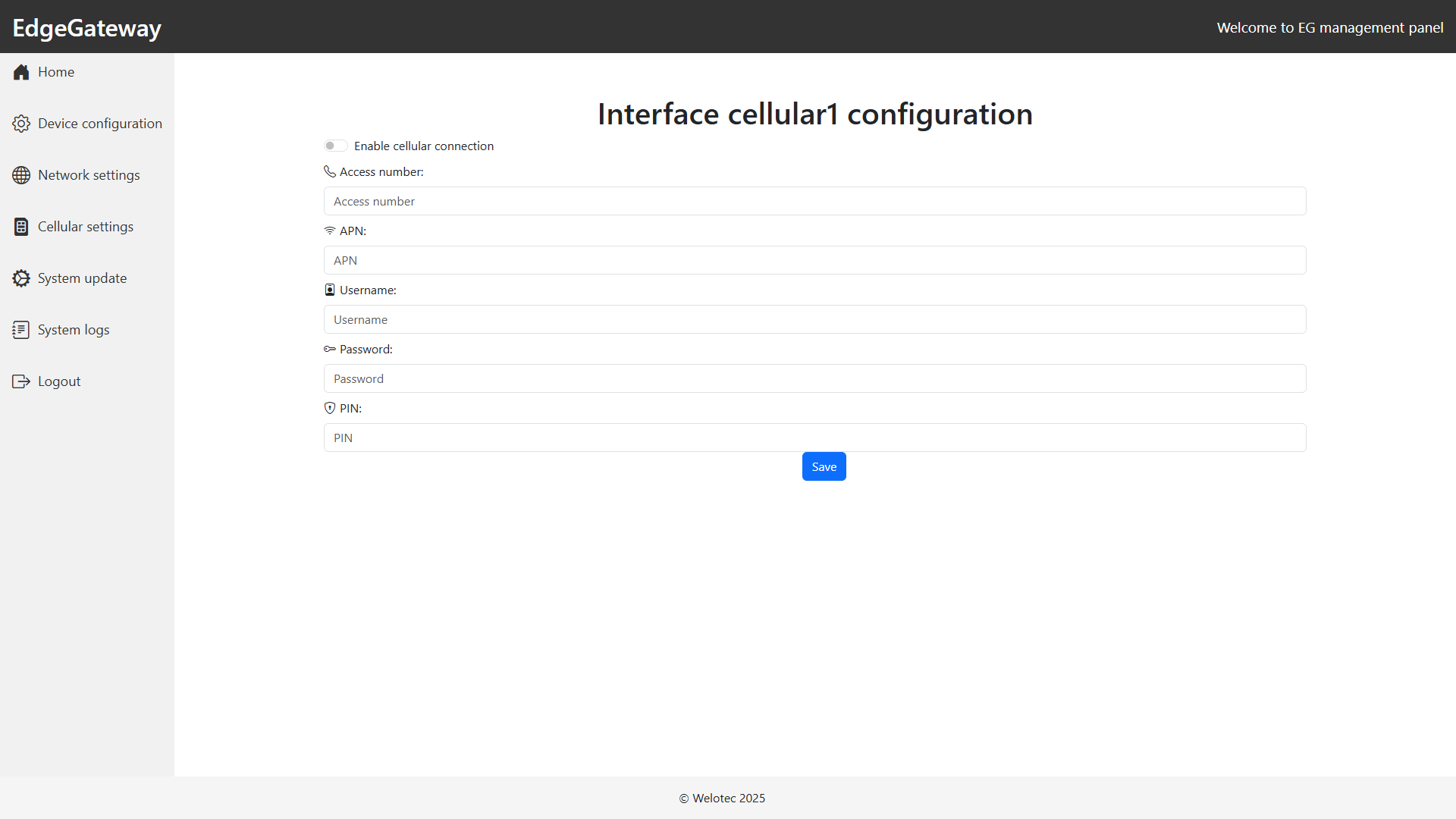
Configure cellular connectivity on devices that include a cellular modem:
Enable Cellular Connection Toggle the switch to activate the cellular interface.
Access Number Enter the dial-in number provided by your carrier (e.g.,
*99#).APN Specify the Access Point Name supplied by your mobile network operator.
Username If required, provide the APN username.
Password If required, provide the APN password.
PIN Enter the SIM card PIN to unlock the SIM (if PIN lock is enabled).
Save Click Save to apply and persist your cellular settings.
This section applies only if your hardware supports cellular interfaces.
System Update
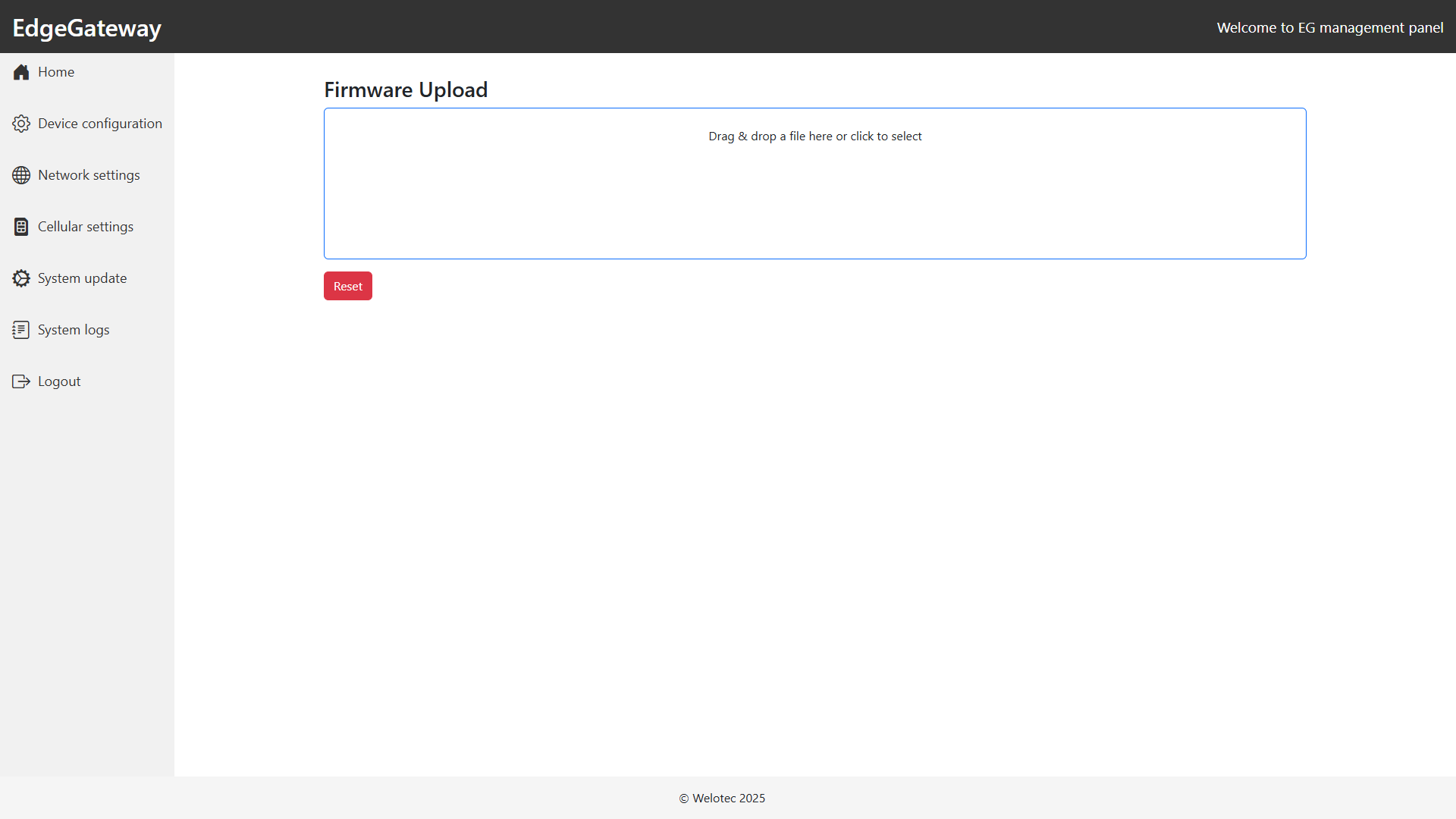
Upload and install new firmware images (.swu) to keep your EdgeGateway up‑to‑date:
Firmware Upload: Drag‑and‑drop or click to select the
.swufile.Reset Selection: Clear the current file choice.
System Logs
View system logs to troubleshoot or audit device activity. Logs include timestamps, unit identifiers, and message details.
Logging Out
Click Logout in the sidebar to securely end your session.
Central Device Management via SMART EMS
With the Welotec SMART EMS Container users benefit from a straight-forward device management system for Welotec devices like 4G LTE Routers and Edge Gateways. It enables a remote management of device configurations and firmware, deployment of zero-touch mass rollouts, and generation device diagnostics, on demand. Learn more about our solution here: https://www.welotec.com/product/welotec-smart-ems/
The functionality of Welotec SMART EMS can be extended by our solution VPN Security Suite. This enables building secure VPN infrastructures and creation of E2E-connections with devices and machines in the field. Learn more about our solution here: https://www.welotec.com/product/welotec-vpn-security-suite/
In case of interest, please get in touch: https://www.welotec.com/contact/